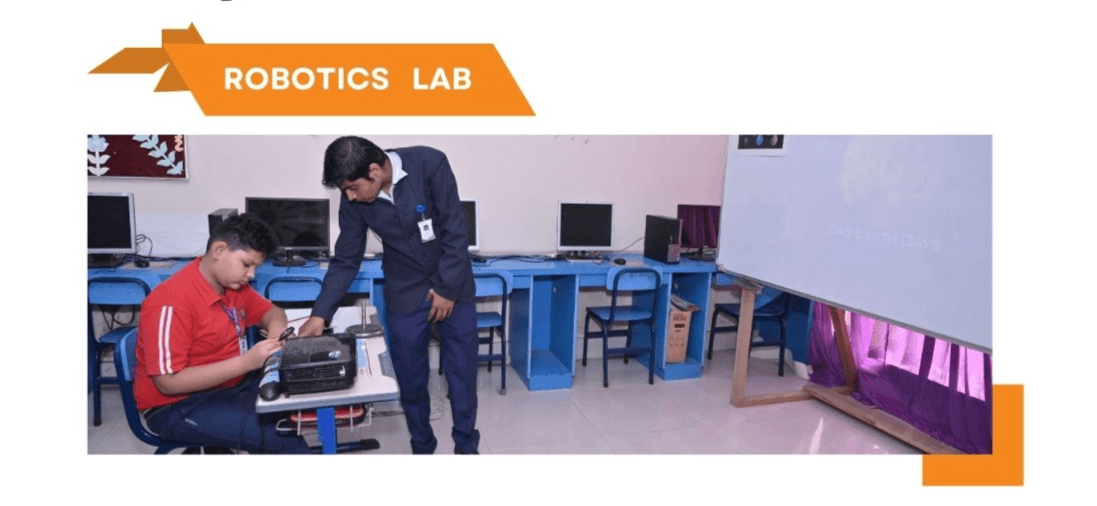
Getting Started with Arduino: A Complete Beginner's Guide
Learn the fundamentals of Arduino programming and electronics. This comprehensive guide covers setup, basic circuits, and your first projects.

Paras Yadav
Founder & Lead Instructor at Ishvara Electricals. Passionate about robotics and STEM education.
Introduction to Arduino
Arduino is an open-source electronics platform based on easy-to-use hardware and software. It's designed for anyone making interactive projects - from artists and designers to hobbyists and students.
In this comprehensive guide, we'll walk you through everything you need to know to get started with Arduino, from setting up your first board to building interactive projects.
What You'll Need
Before we dive in, make sure you have the following components:
- Arduino Uno board
- USB cable (Type A to B)
- Breadboard
- LED lights (various colors)
- Resistors (220Ω and 10kΩ)
- Jumper wires
- Push buttons
Arduino Architecture Overview
Let's understand how Arduino works with a simple diagram:
Setting Up Your Development Environment
Step 1: Download Arduino IDE
Visit the official Arduino website and download the Arduino IDE for your operating system.
Step 2: Install the Software
Follow the installation wizard to complete the setup. The IDE includes:
- Code editor with syntax highlighting
- Compiler for Arduino sketches
- Serial monitor for debugging
- Library manager
Step 3: Connect Your Arduino
Connect your Arduino board to your computer using the USB cable. The power LED should light up.
Your First Arduino Program
Every Arduino program (called a "sketch") has two main functions:
void setup() {
  // Runs once when the board starts
  pinMode(LED_BUILTIN, OUTPUT);
}

void loop() {
  // Runs repeatedly
  digitalWrite(LED_BUILTIN, HIGH);  // Turn LED on
  delay(1000);                      // Wait 1 second
  digitalWrite(LED_BUILTIN, LOW);   // Turn LED off
  delay(1000);                      // Wait 1 second
}
This simple program blinks the built-in LED on and off every second.
Understanding the Program Flow
Here's how an Arduino program executes:
Building Your First Circuit
Let's build a simple LED circuit:
Circuit Components
| Component | Quantity | Purpose |
|---|---|---|
| LED | 1 | Visual output |
| 220Ω Resistor | 1 | Current limiting |
| Jumper wires | 2 | Connections |
Wiring Diagram
Connect the components as follows:
- Connect the longer leg (anode) of the LED to pin 13 through the resistor
- Connect the shorter leg (cathode) to GND
Advanced: Multi-LED Control
Once you're comfortable with basic circuits, try controlling multiple LEDs:
int ledPins[] = {9, 10, 11};  // Red, Yellow, Green
int numLeds = 3;

void setup() {
  for (int i = 0; i < numLeds; i++) {
    pinMode(ledPins[i], OUTPUT);
  }
}

void loop() {
  for (int i = 0; i < numLeds; i++) {
    digitalWrite(ledPins[i], HIGH);
    delay(500);
    digitalWrite(ledPins[i], LOW);
  }
}
Common Arduino Projects for Beginners
Here are some project ideas to practice your skills:
- Traffic Light Simulator - Use red, yellow, and green LEDs
- Temperature Monitor - Read temperature sensor data
- Motion Detector - Use PIR sensor to detect movement
- Light-Following Robot - Build a robot that follows light
Troubleshooting Common Issues
Tip: If your code won't upload, check that you've selected the correct board and port in the Arduino IDE under Tools menu.
LED Not Lighting Up?
- Check the LED orientation (longer leg = positive)
- Verify the resistor value
- Test with a different LED
Code Not Uploading?
- Select the correct board: Tools → Board → Arduino Uno
- Select the correct port: Tools → Port
- Try a different USB cable
Next Steps
Now that you've learned the basics, here's what to explore next:
- Sensors: Temperature, humidity, light, and motion sensors
- Motors: DC motors, servo motors, and stepper motors
- Communication: Serial, I2C, SPI, and wireless protocols
- Projects: Build complete projects combining multiple components
Conclusion
Arduino opens up a world of possibilities for creating interactive electronic projects. Start with simple circuits and gradually work your way up to more complex builds. The key is consistent practice and experimentation.
Happy making! 🚀
Have questions? Join our robotics workshops for hands-on learning with expert guidance.